Your onboarding, in full
Your first
five days
Everything that happens, in the order it happens,
with nothing left for you to work out.
You have signed. From here you need about forty minutes of your time in total, spread across five business days. This guide covers every one of those minutes — what we do, what you do, and exactly which buttons to press. Read it once. Keep it.
Live in 5 business daysAbout 40 minutes of your timeNo homeworkNothing technical
Prepared for
Your restaurantYour name goes here on the copy we send you
Your onboarding lead
Rhys StanleyFounder & CEO, GotRegulars
GotRegulars · Your first five daysHow to use this guide
Start here
Nine things happen. You are needed for six of them.
Every section is tagged with who does it. Anything tagged We do it you can read for interest and forget. The three that genuinely need you are marked, and none takes more than fifteen minutes.
| What | Who | When | How long |
|---|
| 1 | We build it — menu, site, receptionist, console | We do it | Day 0–1 | — |
| 2 | The setup call — seven answers | Together | Day 1–2 | 15 min |
| 3 | Google Business Profile — add us as Manager | You, once | Day 2 | 2 min |
| 4 | Instagram & Facebook — one authorisation each | You, once | Day 2 | 4 min |
| 5 | Your phone — the number, and the handover | Together | Day 3 | 10 min |
| 6 | Till and diary — connected around what you already run | Together | Day 3 | 5–10 min |
| 7 | Your console — the tour, and the weekly ten minutes | You, weekly | Day 4 | 10 min |
| 8 | QR cards on tables — and sixty seconds with the team | You, once | Day 4–5 | 10 min |
| 9 | Go live — test call, test order, switch on | Together | Day 5 | 10 min |
Two promises, so you can plan around them
Five business days, from the day you agreed. You are live within five business days of your agreement — your signature or your first payment, whichever came first — or your first month is free. Not from a conversation, and not from whenever we get round to starting. The only thing that pauses that clock is us waiting on something we have asked you for by name and in writing, and it restarts the day you send it. Here is the whole list, so you can have it ready and never pause it: your menu with current prices and allergens, your opening hours, your booking rules, your average spend per head, Manager access on your Google Business Profile, and the fifteen-minute setup call. Nothing else stops the clock unless we write to you and name it. We will never tell you sooner than five days: that is what it honestly takes to build it, check it with you and switch it on.
Thirty days, money back. If it is not for you in the first thirty days, you get your money back. Monthly rolling after that — no contract, so month two is your decision.
Every screen in this guide
Every product screenshot here is a photograph of the live system, taken the day this guide was made, on our demonstration venue — The Copper Fox and The Local Kitchen are ours, filled with example data. No real restaurant's information appears anywhere in this document. Yours will look like this, with your name and your dishes on it.
How to use this guide2
GotRegulars · Your first five daysDay by day
Step one · what happens the moment you sign
Day zero: we start building before you have done anything at all.
You do not send us a menu, fill in a form, or gather logins. We build the first version from your existing website and menu, and you receive it the same day.
0
The hour you sign. You get a welcome text and email with three links — your guest menu, your owner console, and your kitchen screen — plus a time for the setup call. Open them. You cannot break anything.
1
Day 1 — we build. Your menu site, your venue website, your AI receptionist (trained on your real menu), your loyalty scheme and your console are all built from your existing site. Your first week of marketing posts is drafted.
2
Day 2 — the setup call, and your two jobs. Fifteen minutes on the phone (the seven answers overleaf). Straight after it, your two five-minute jobs: add us on Google, and connect Instagram and Facebook.
3
Day 3 — the phone and the plumbing. We tune the receptionist's voice and words with you, you hear it, then we connect your number, your till and your booking diary around whatever you already use.
4
Day 4 — your check, and your room. You read your menu through once for prices and allergens. Your printed QR table cards arrive. The kitchen screen goes on a tablet at the pass.
5
Day 5 — live. Together on a call: you ring your own number and hear your receptionist answer, then send a test order from your own phone and watch it land on the kitchen screen. That is go-live.
What you receive, and when
| What you get | When | Where it arrives |
|---|
| Your guest menu — photos, prices, ordering, rewards | Day 0 | Link by text and email |
| Your owner console — the control room for all of it | Day 0 | Link by text and email |
| Your kitchen screen — the live order board | Day 0 | Link, plus a venue key on the call |
| Your venue website — built to rank on Google | Day 1 | In the console, under Website & SEO |
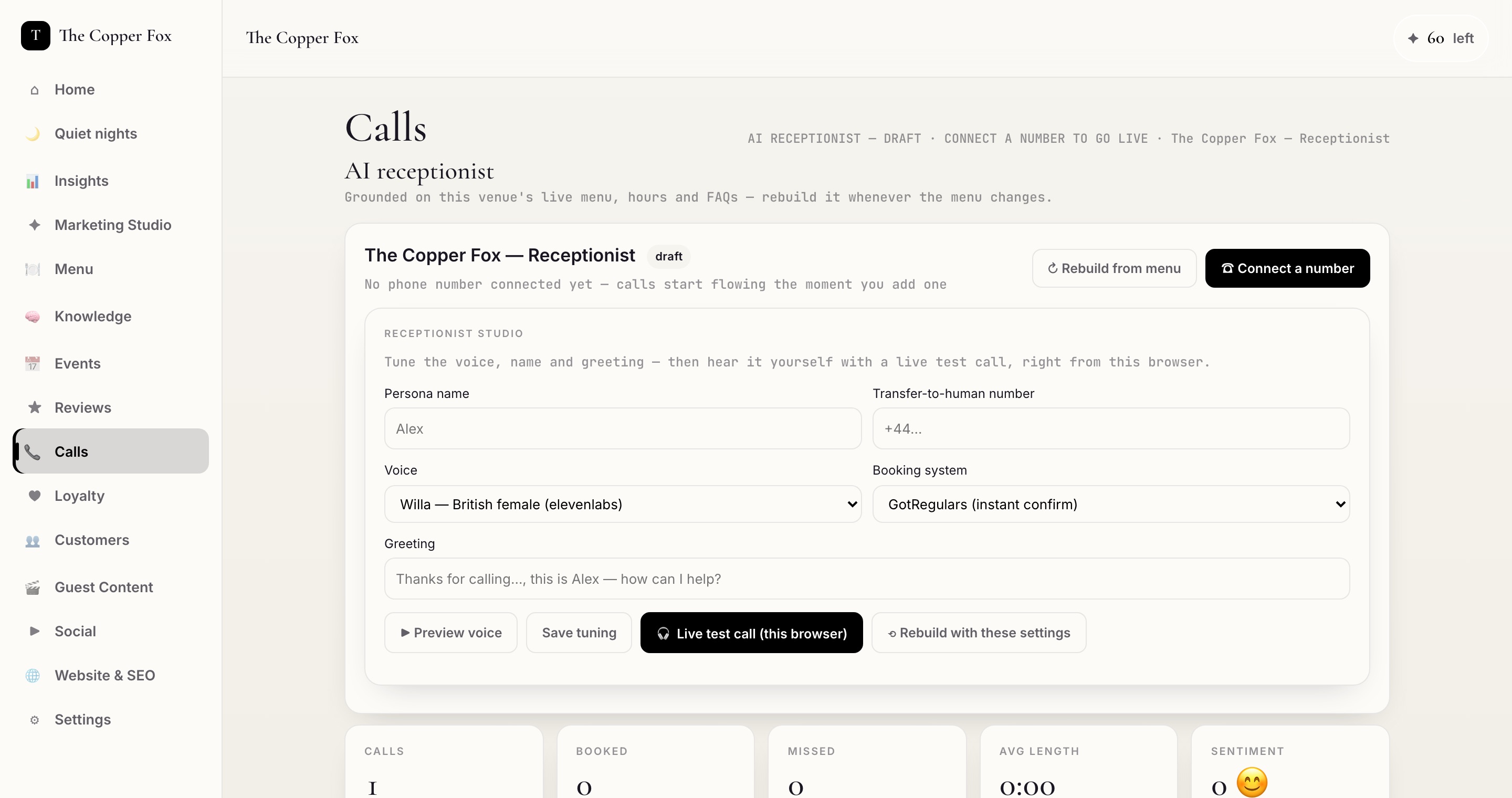
| Your AI receptionist — built and trained, not yet live | Day 1 | Console → Calls; live on day 3 |
| Printed QR table cards | Day 3–5 | Posted to the venue |
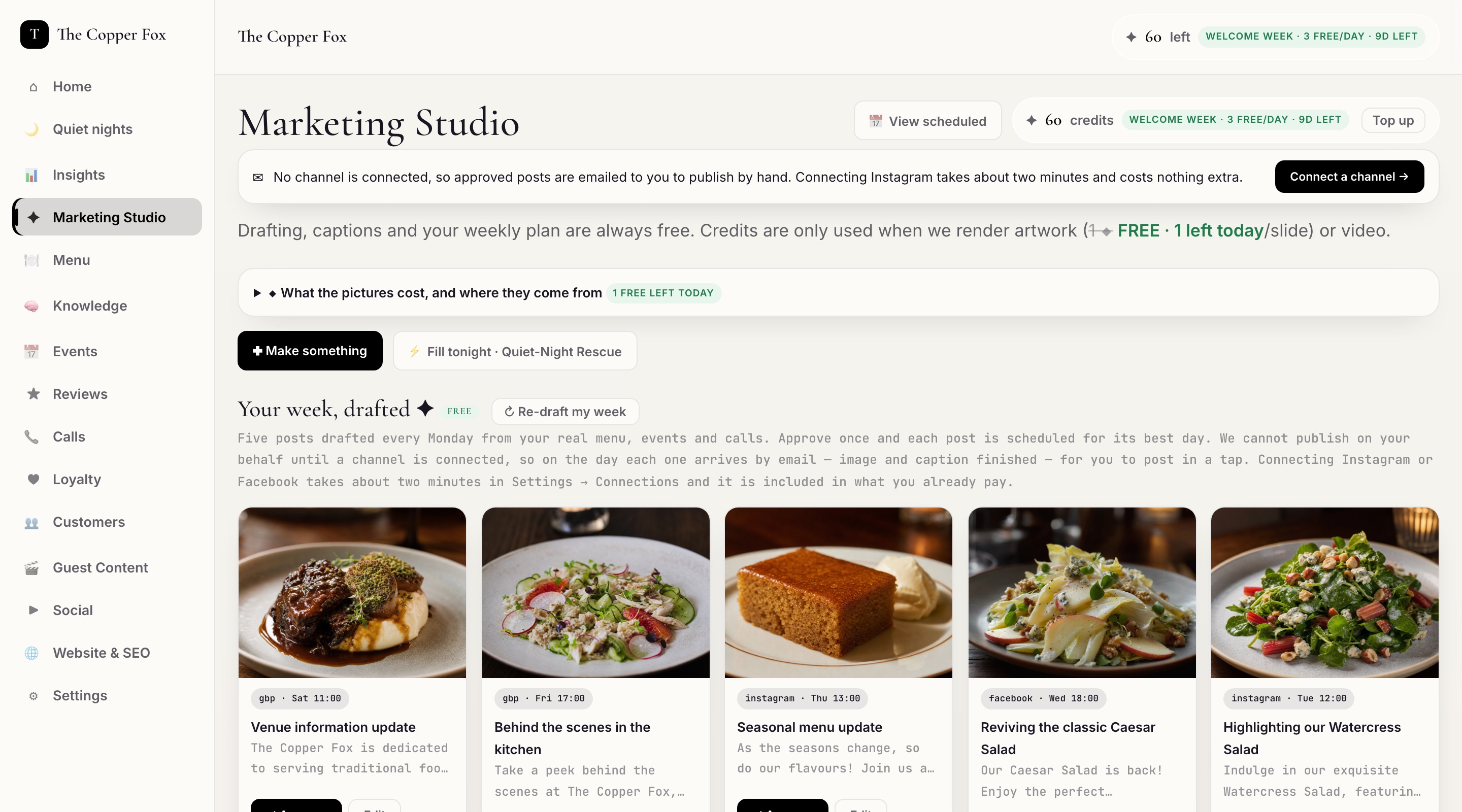
| Your first week of marketing posts, drafted | Day 1 | Console → Marketing Studio |
| Your monthly report in plain English | 1st of each month | Email |
Day by day3
GotRegulars · Your first five daysThe setup call
Step two · the 15-minute setup call Together, on the phone
Seven answers. That is the only information we ever need from you.
We ring you at the time we agreed. Have these seven ready and the call is easy — we type everything in while you talk. Everything else about your restaurant we already learned from your website.
1
The best mobile number for the venue. New orders and booking alerts go there by text. Usually the manager's phone, or whichever handset lives behind the pass. You can change it later in Settings.
2
The best email for copies of everything. Orders, bookings, your monthly report. Use one somebody actually reads — an owner's address is better than a general info@ nobody opens.
3
Your booking system, by name. OpenTable, ResDiary, TheFork, Design My Night, Tock — or "a paper diary and the phone". Whatever you say, you keep it. We connect around it, never instead of it. Page 14 sets out exactly what we do for each one.
4
Who confirms bookings — you or us. Two choices, and we will say which one we would pick for you:
Instant — we hold the diary and guests are confirmed on the spot. Right if GotRegulars is your diary.
You confirm — every booking request comes to your phone and you tap once. Right if you are keeping OpenTable or ResDiary, because then a double-booking is impossible.
The one that trips people up
Question four is the important one. If you keep an outside diary and choose "Instant", two systems could sell the same table. So if you are keeping OpenTable, ResDiary, TheFork or Design My Night, we set you to You confirm and your existing diary stays the single source of truth. Nothing we do can book a table your own diary has not offered.
What we will never ask you for
Your OpenTable password, your bank details over the phone, your till's admin login, or a card number by email. If anyone asks you for those in our name, it is not us — ring the number on the back page. The Google, Instagram and Facebook connections in this guide are all done by you, signed in as yourself, and you can withdraw any of them in a tap.
The setup call4
GotRegulars · Your first five daysThe setup call
Step two, continued
The last three, and why each one is asked.
5
Your till, by name. Square, SumUp or Goodtill, Zettle, Epos Now, an estate till like Zonal or Lightspeed — or "just a card reader". We ask so we can tell you the truth about yours, and today the truth is the same on all of them: your orders come out on the kitchen screen, a printed ticket and email, and your rewards and money numbers run on the settle code your team types at the till. Page 13 sets out each one, including the one that can never do it and the two we have not built.
6
Your average spend per head. A rough number — "about £28" is fine. It is used for one thing only: labelling estimates honestly. A booking we cannot trace to money is shown as estimated at your figure, never mixed in with what was actually taken.
7
Your Google review link. Open Google Maps, find your venue, tap Ask for reviews, copy the link. If that sounds fiddly, skip it entirely — we find it with you on the call in about thirty seconds.
Also worth having to hand
None of these are required, and none of them hold up go-live — but if they are within reach the call goes faster: your opening hours including any kitchen-close time, which nights are genuinely your quiet ones, whether you take dogs, and anything you are asked on the phone five times a week.
What we do with the answers
Typed straight into your console while we are on the phone with you. Nothing is written down elsewhere, nothing is shared, and you can see and change every one of them yourself afterwards in Settings. Your guest data is yours, exportable at any time, whether you stay or go.
After the call, in one sentence
“That's the only admin there is — everything from here is either automatic, or two taps in the app.”
Then do these two, the same day
The next two sections are the only jobs on your list that we genuinely cannot do for you, because Google, Instagram and Facebook will only ever give access to the person who holds the account — and we would not want it any other way. Together they take about six minutes, once, forever. Everything on the Google side of your product depends on the first one.
The setup call5
GotRegulars · Your first five daysGoogle Business Profile
Step three · Google You, once · 2 minutes
The one step that unlocks the whole Google half of what you are paying for.
Google will only give access to the person who owns the listing. So this is the single thing in the whole onboarding that only you can do — and until it is done, we cannot post to Google, cannot reply to your Google reviews, and will not pretend otherwise.
What it switches on
Your offers and updates post to Google — the quiet-night special goes onto your listing automatically, where people searching for dinner tonight actually look.
Your Google reviews arrive in your console — in the same list as the rest, each with a reply already drafted for you to publish or edit.
Your events and news go out as Google posts without you opening anything.
What Manager access does NOT allow
It does not let us delete a review or change your star rating — nobody can do that, at any access level, including you. It does not transfer ownership: you remain the Owner and you can remove us in two taps at any time. It does not touch your Google Ads, your Gmail, or anything else in your Google account.
Before you start — the ninety seconds that saves an hour
1. Be signed in as the right person. Use the Google account that claimed the listing — often an old personal Gmail belonging to whoever set it up years ago, not the venue's day-to-day address. If you are signed into more than one Google account, this is the usual reason the next screens look wrong.
2. If you have never claimed the listing at all — you see your restaurant on Google Maps but have never managed it — search Google for your restaurant's name, and on your listing tap Claim this business first. Google verifies you (usually by postcard or phone). Tell us and we will sit with you through it; it does not delay the rest of your build.
3. Do it on a laptop if you can. The phone app works and is on page 9, but the desktop screens are clearer the first time.
The address you will be pasting in
hello@gotregulars.com — role: Manager
Google Business Profile6
GotRegulars · Your first five daysGoogle, click by click
Step three, click by click
Two minutes. Four clicks. Here is every one of them.
The panels below are drawings of Google's own screens, in our colours, with the exact words you are looking for picked out in gold. Google redecorates from time to time — the words are what to follow, not the layout.
1
Go to business.google.com and pick this venue
Type business.google.com into your browser. If you manage more than one venue you will see a list — choose the right one. If you manage only one, Google takes you straight in and you can go to click 2.
Your businessesAdd business
The Copper Fox — 12 High StreetOpen
The Copper Fox — RiversideOpen
Drawing of Google's screen, not a screenshot Signed in as the wrong account? Click your picture, top right, and switch accounts.
2
Open Settings, then People and access
In the menu down the left, click Settings, then People and access. On some accounts Google labels this Users or Managers — same thing, same place.
business.google.com › The Copper Fox › Settings
Profile
Posts
Reviews
Messages
Photos
Settings
People and access Manage who can edit this profile›
Business information›
Advanced settings›
Remove business profile›
Drawing of Google's screen, not a screenshot Shortcut: if you are already signed in, searching Google for my business opens the same place.
Google, click by click7
GotRegulars · Your first five daysGoogle, click by click
Step three, click by click
The two clicks that actually do it.
3
Click Add, paste our address, choose Manager
You will see whoever already has access. Click Add (sometimes a +, top right). Paste hello@gotregulars.com into the box, then — and this is the part to get right — set the role to Manager, not Owner and not Site manager.
business.google.com › Settings › People and access
People with access+ Add
you@yourvenue.co.uk Owner⋮
Add people hello@gotregulars.com
Access ManagerOwner · Manager · Site manager
Drawing of Google's screen, not a screenshot Manager is the one to pick: it can post and reply, and it cannot remove you or delete the listing.
4
Click Invite — and you are done, forever
Click Invite (or Send). Google emails us; we accept within the working day. Your listing then shows up inside your console under Website & SEO, usually within a few minutes of us accepting.
business.google.com › Settings › People and access
hello@gotregulars.com · Manager
Ready to send the invitationInvite
Pending invitations appear here until accepted
Drawing of Google's screen, not a screenshot
How you know it worked
Two things happen, and you do not have to chase either: our name appears in that same People and access list with the role Manager, and in your console Settings → Connections, the Google Business Profile card changes from not linked to your listing's name. If it still says not linked the next morning, that is on us — reply to any message we have sent you and we will look.
Google, click by click8
GotRegulars · Your first five daysGoogle, click by click
Step three · the phone version, and when it goes wrong
The same thing on your phone, and the four things that catch people out.
On your phone, in the Google app
1
Open the Google app and make sure the account picture top right is the one that manages the listing.
2
Search for your own restaurant by name. Your listing appears with an owner's toolbar across it.
3
Tap Edit profile, then Settings, then People and access.
4
Tap Add, paste hello@gotregulars.com, choose Manager, tap Invite.
Identical to the desktop version — the buttons are simply stacked. If you cannot find People and access on the phone, it is nearly always because you are signed in as a different Google account from the one that claimed the listing.
The four things that catch people out
“I can't see Settings at all.”
You are looking at your listing as a member of the public, not as its manager. Sign in with the account that claimed it. |
“It says the business is already managed by someone else.”
An old agency, or the person who set it up. Google shows you who: request access through that same screen, or ring them. Tell us and we will chase it with you. |
“There are two listings for us.”
Common, and worth fixing anyway — duplicates split your reviews. Add us as Manager on the one with the most reviews and tell us; we will help you get the other merged. |
“I picked Owner by mistake.”
No harm done, but change it back to Manager: same screen, click our row, change the role. We do not need and do not want Owner. |
If you would rather we did it with you
Say so on the setup call and we will stay on the phone while you click, or take a screen-share for three minutes. There is nothing embarrassing about this step — Google has moved it four times in as many years. What we cannot do is complete it without you: Google will not let anyone but the account holder grant access, which is exactly the protection you would want.
Google, click by click9
GotRegulars · Your first five daysInstagram & Facebook
Step four · social You, once · about 4 minutes
Two taps, in your own console, and your posts publish themselves.
Every week we draft your posts from your real menu, your events and what your callers actually asked about. Approving them is one tap. Whether an approved post publishes itself or arrives in your inbox for you to post by hand depends entirely on this one connection.
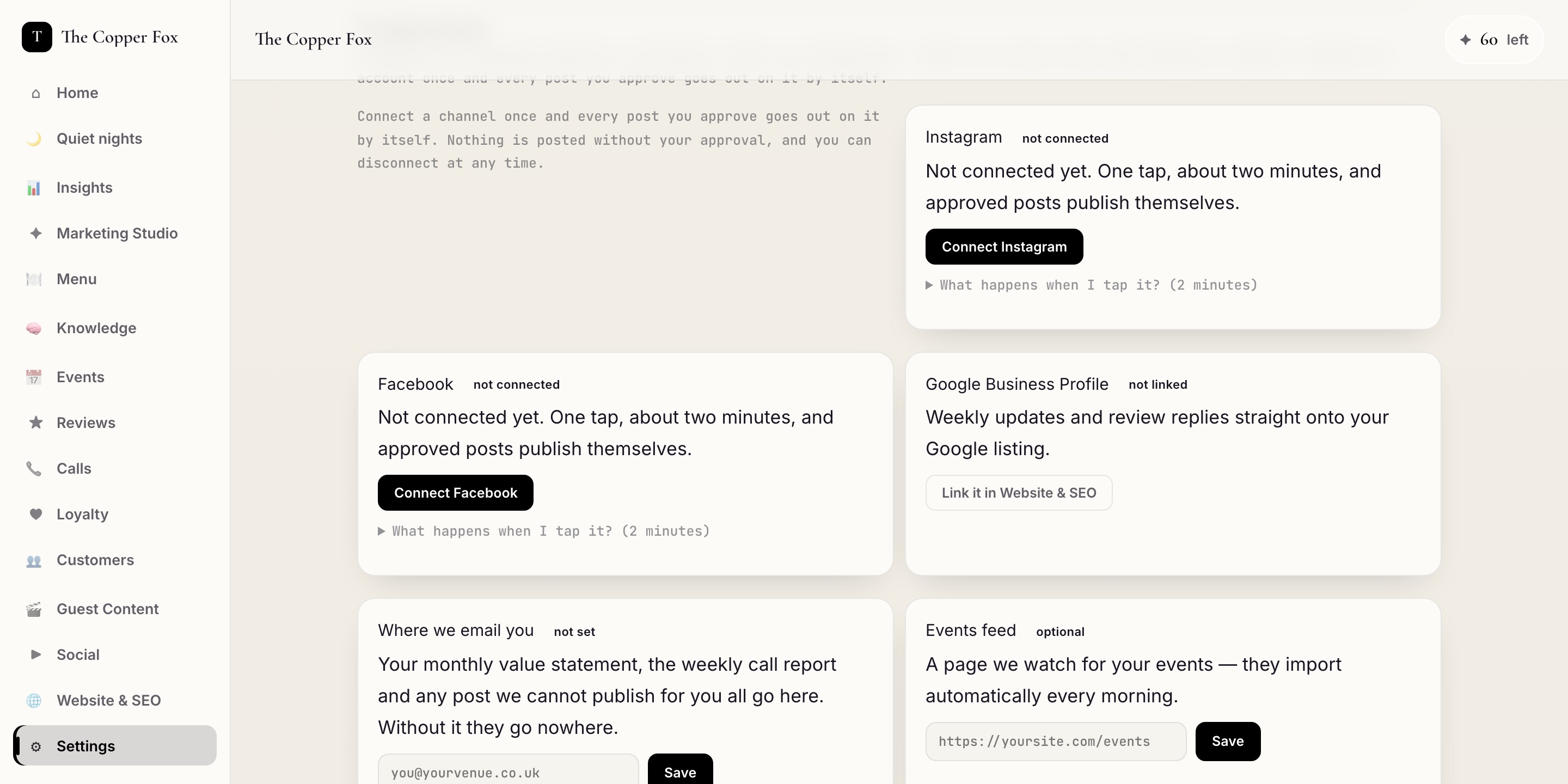
Console → Settings → Connections. This is the screen. Three cards, each showing its true state — not connected means not connected, and while it says that we will never claim a post went out. Our demonstration venue
Instagram · about 2 minutes
1
Tap Connect Instagram. A Facebook login page opens — Instagram business accounts are authorised through Facebook, which is Instagram's rule, not ours.
2
Sign in as the person who manages the venue's Instagram.
3
Choose the venue's Instagram account and the Facebook Page it is linked to, and allow posting.
4
You land back on this screen and the card turns green. Done, forever.
Facebook · about 2 minutes
1
Tap Connect Facebook and sign in as an admin of the venue's Page.
2
Tick the venue's Page when Facebook asks which Pages to allow.
3
Allow posting when prompted.
4
Back on this screen: if you manage several Pages, pick the venue's, and we remember it.
Instagram & Facebook10
GotRegulars · Your first five daysInstagram & Facebook
Step four, continued
The one requirement, and exactly what you are authorising.
The single thing that can stop this working
Your Instagram must be a Business or Creator account, linked to a Facebook Page. That is Instagram's own requirement for any scheduling tool — Later, Buffer, Hootsuite, all of them — and there is no way around it for anybody. Switching is free and takes about a minute: Instagram app → Settings → Account type and tools → Switch to professional account. You keep your followers, your posts and your handle.
What we can do once connected
Publish the posts you have approved, to the account or Page you picked. That is the whole of it.
What we cannot do
See your personal profile or your friends. Read your direct messages. Post anything you have not approved. Follow, unfollow or comment as you. Touch any other Page or account you manage.
How to disconnect, whenever you like
Same screen: Settings → Connections → Disconnect. Or from Meta's side — Facebook → Settings & privacy → Business integrations → remove GotRegulars. Either works instantly and nothing else in your account is affected. We would rather you knew where the exit is from day one.
If you would rather not connect them at all
Perfectly fine, and nothing else breaks. Every post you approve then arrives in your inbox on its day, finished — caption written and artwork rendered — for you to post in a tap. You lose the automation, not the marketing. You can connect later at any time, and the same week's posts will start publishing themselves from then on.
A fair warning, plainly
“Until a channel is connected, we will say so on your screen rather than quietly emailing you a caption and calling it published.”
Instagram & Facebook11
GotRegulars · Your first five daysYour phone
Step five · the number Together · day 3
Your number, and how the AI host takes over — on your terms.
Nothing happens to your phone until you have heard the host answer and said you are happy. There are three ways to run it, and you can change your mind at any time.
| How to run it | What happens | Best for |
|---|
| A. A new GotRegulars number | We give you a UK number. It goes on your website, your Google listing and your menu. Your own line carries on exactly as it does now. | Trying it with nothing at risk. This is what we suggest for week one. |
| B. Divert when nobody picks up | Your number rings as usual. If nobody answers within a few rings, or the line is engaged, the call diverts to the host, which answers and books. You never lose a call to voicemail again. | Almost everyone, once they have heard it. Your regulars still reach a human first. |
| C. Divert everything | Every call goes to the host, which handles bookings and questions and passes anything unusual to you as a text with the caller's number. | Small teams with nobody free to answer during service. |
About the divert, honestly
The divert is a setting on your own phone line, made with your phone provider — BT, Virgin, Vodafone, whoever you are with — not something we can switch on from here. It is a standard feature and it is normally free. On the call we look up the exact steps for your provider and stay on the line while you do it. It takes about two minutes, and you can undo it in the same two minutes.
Before it answers a single real call
You pick the voice. You write the greeting in your own words. You ring it yourself and listen. Nothing goes live on any number of yours until you have said yes to what you heard.
Who owns the number
A number you already owned stays yours, always, whether you stay with us or go. A number we provision for you is part of the service and runs while you are a member. We would rather say that now than have you find out later.
What it will, and will not, do
It will: answer in one ring, at any hour; book tables; answer menu, allergy, parking and dog questions from your real menu and your own answers; remember regulars; text confirmations; and take a message with the caller's number when it should not decide something itself.
It will never: invent an answer it does not have; promise a table your diary has not offered; or confirm a booking itself if you chose "You confirm" — in that mode it takes the request and you tap once. Every call is recorded and transcribed in your console under Calls, and a plain-English summary is emailed to you every Monday.
Your phone12
GotRegulars · Your first five daysYour till
Step six · your till Together · day 3
Your till stays exactly as it is.
Two separate things: orders going in to your till, and sales coming out of it. Today we do neither, on any till, and the table says why.
| Your till | Orders inside the till | Sales reported to us | What you actually do |
|---|
| Square |
Never, and not by anyone. Square shows an order only once it is paid for |
Built, never used — nothing is reported until you authorise us inside Square, same day |
Nothing for orders. For sales, sign in to Square once. About 4 minutes. |
| SumUp · Goodtill |
Waiting on SumUp — their API does exactly this and our side is written. It needs a one-time approval to us, so no date |
The same approval |
Nothing to chase. The approval is ours to get, not yours. |
| Epos Now |
Not built — needs nobody's approval but yours, so this one is on us. No date |
Not built — when it is, an API device uses one of your paid licences |
Nothing today. When we build it you generate the key yourself. |
| Zettle |
Not built — and not impossible either, as far as we can tell: their documentation would not load for us |
Not built — gated by PayPal rather than by you |
Nothing. We will not guess for you. |
| An estate till (Lightspeed, Clover, Toast, Zonal and the rest) |
Months, not days — a partner programme we do not control |
The same, and the same months |
Nothing, and none of it goes near your five business days. |
| Card reader only, or no till at all |
Simplest of all — GotRegulars is your ordering system |
Everything through us is tracked to the penny |
Nothing. Take payment exactly as you do now. |
What actually records your money, on every row of that table
The settle code. When the guest pays, your team types the short code from their phone and the amount you took, and that becomes revenue and loyalty. It is exact and it waits on no supplier. Where a till is not connected we label the number estimated.
And whatever your till, this is always true
Every order reaches your kitchen on the kitchen screen, on a printed ticket if you have a printer, and in your email — three rails, none of which depend on your till.
Your till13
GotRegulars · Your first five daysYour diary
Step six, continued · your diary Together · day 3
Keep your diary. We connect around it, never instead of it.
Whatever you use stays the single source of truth. All we need is for bookings made elsewhere to reach us, so your kitchen screen, guest list and reports are complete — and for our receptionist to never book a table your own diary has not offered.
| Your diary | How bookings reach us | Set-up effort |
|---|
ResDiary
The cleanest of them all |
ResDiary lets you add any email address as a notification recipient. We give you one address to add, on new, amended and cancelled bookings. Every one then appears in your GotRegulars guest list automatically. |
Two minutes, in ResDiary's own Settings. We talk you through it. |
OpenTable
Keep it |
OpenTable has no recipient field, and their terms rightly forbid anyone sharing your login — so we never touch your account. Instead you set one forwarding rule in your own inbox, so OpenTable's booking emails also come to us. Bookings made on OpenTable we simply import; we never text those guests twice. |
Three minutes, once, in Gmail or Outlook. We do it with you on a screen-share. |
| TheFork |
Same as OpenTable — a forwarding rule on their notification emails, set up with you. |
Three minutes, once. |
| Design My Night (Collins) |
Same as OpenTable — a forwarding rule on Design My Night's booking emails, set up with you. Collins does publish a booking API, but we have not built that connection and we are not going to tell you we have. |
Three minutes, once. |
| Tock |
Same again — a forwarding rule on Tock's booking emails. No direct connection, and no pretending there is one. |
Three minutes, once. |
Paper diary and the phone
We become the diary |
Nothing to import — GotRegulars is your diary. Bookings confirm instantly by text, the receptionist books around your real capacity, cancellations free the table back up, and there are never per-cover fees. |
None at all. |
The double-booking rule, in one sentence
If you keep an outside diary, we set you to You confirm: our receptionist takes the request, texts you, and the table is only ever confirmed after you have tapped once with your real diary in front of you. That is why a double-booking cannot happen — not because two systems talk to each other perfectly, but because only one of them is allowed to say yes.
One thing you gain either way
However a guest booked, if they scan your QR, order, or join your rewards, they are your guest in your list — name, visits, what they ate, what they spent — exportable at any time. Booking platforms do not give you that, and it is the part that makes a regular a regular.
Your diary14
GotRegulars · Your first five daysYour console
Step seven · your console You · ten minutes a week
Fifteen views. You will live in three.
Your console opens on Home; everything else is down the left. Nothing in here can break your restaurant, so click every one once today and learn where things are.
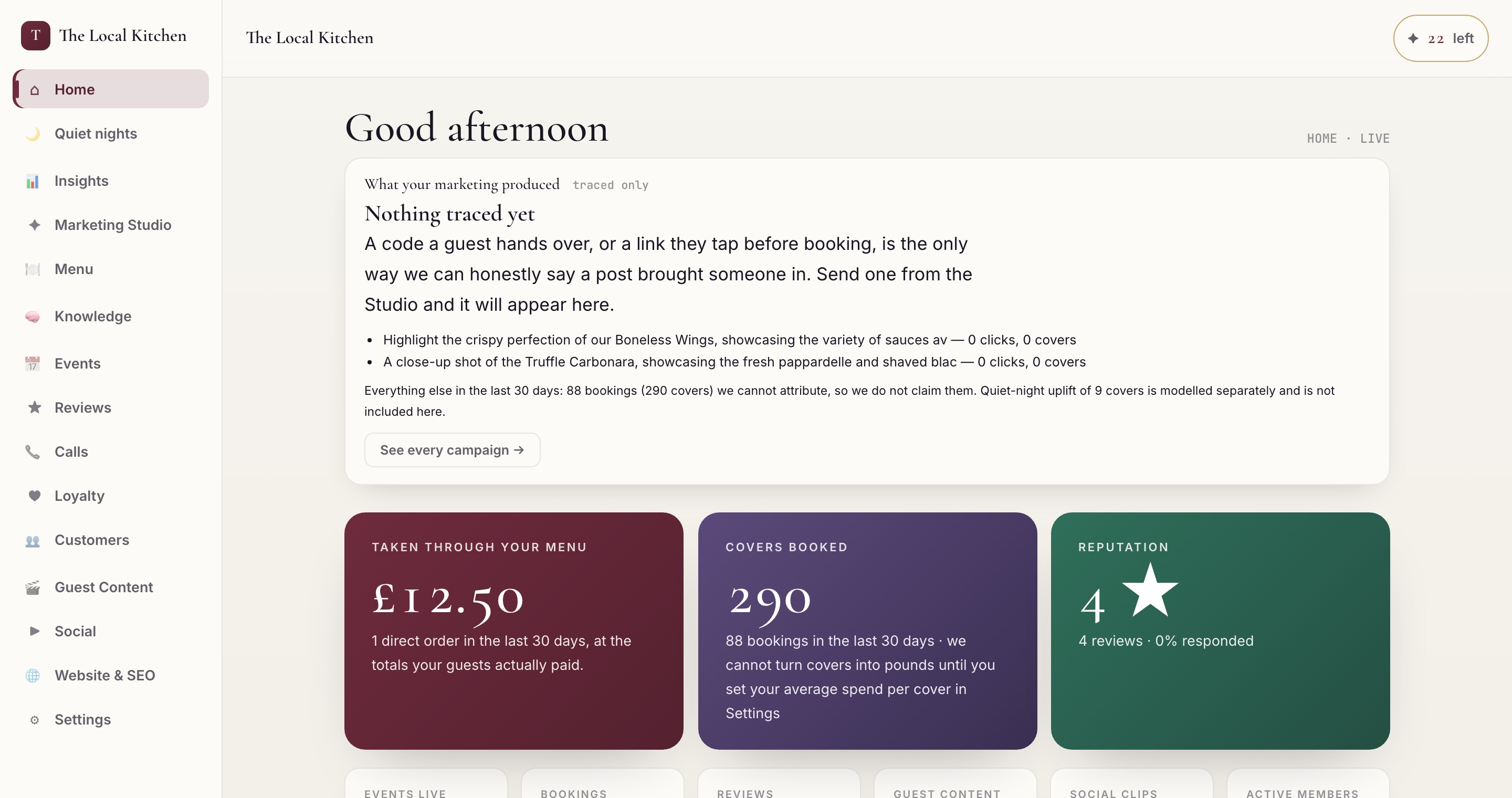
Home — the whole business on one screen. Money taken through your menu, covers booked, your reputation — and, deliberately, an honest note about what we cannot attribute rather than a flattering number. Our demonstration venue
⌂ Home
What it is: today at a glance — orders, bookings, reviews, what your marketing produced.
Do weekly: read the top three cards. Tap any number that surprises you; it opens the detail behind it.
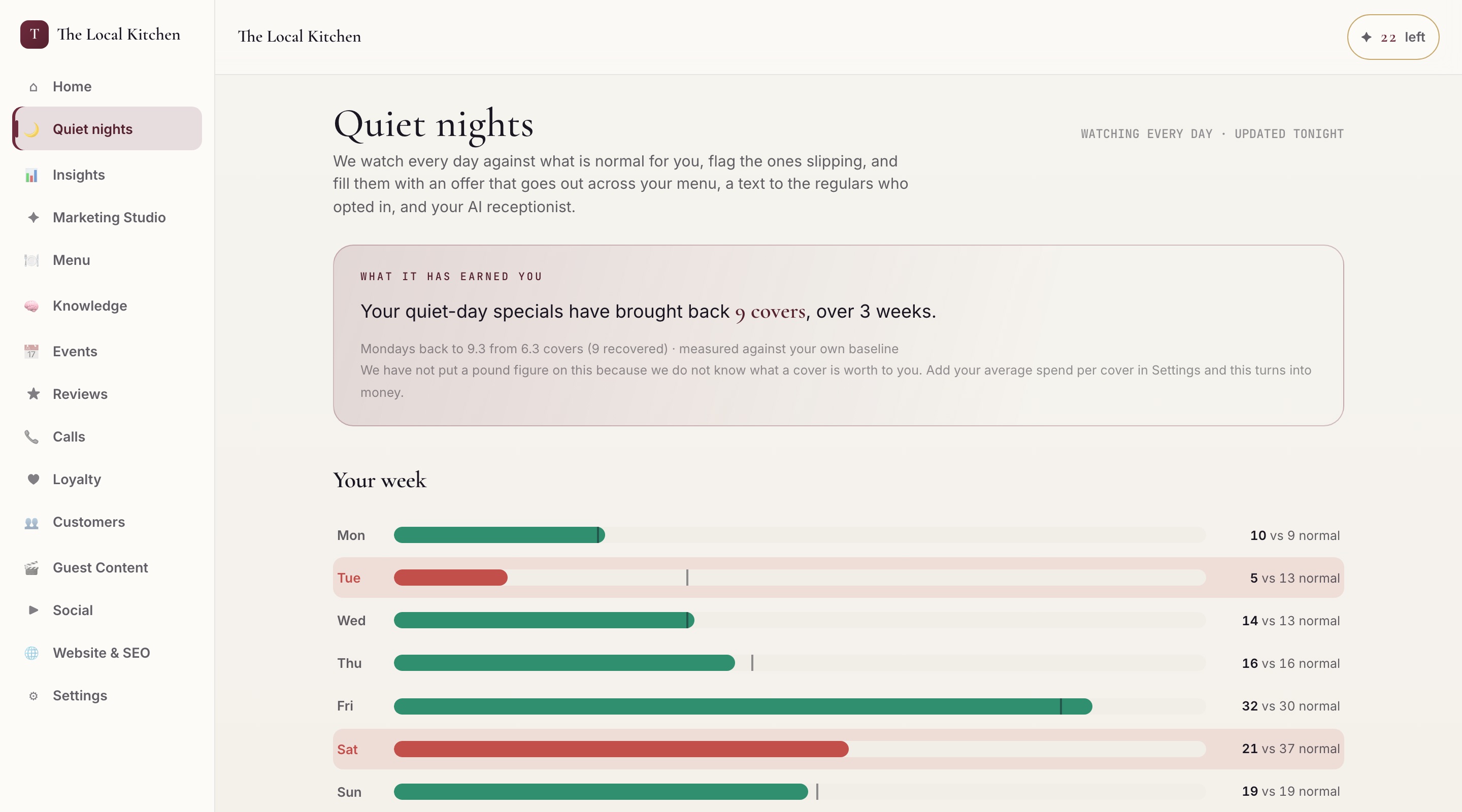
🌙 Quiet nights
What it is: your week against your own normal — green on track, red slipping.
Do weekly: tap any red night and pick an offer. Three taps sends it to your menu, your regulars and your Google listing.
For your first month it says it is still learning, and it is right to: it needs four weeks of your own bookings before it will call a night quiet, so the first red night appears at about week five. Do not wait — set your first offer on the night you already know is slow.
Quiet nights. Not a guess about Tuesdays — your own baseline, learned from your own trade, then a count of what came back against it. This is how it looks once that baseline exists; yours takes four weeks. Our demonstration venue
Your console15
GotRegulars · Your first five daysYour console
Step seven, continued
The two you will open most: your menu, and your week's marketing.
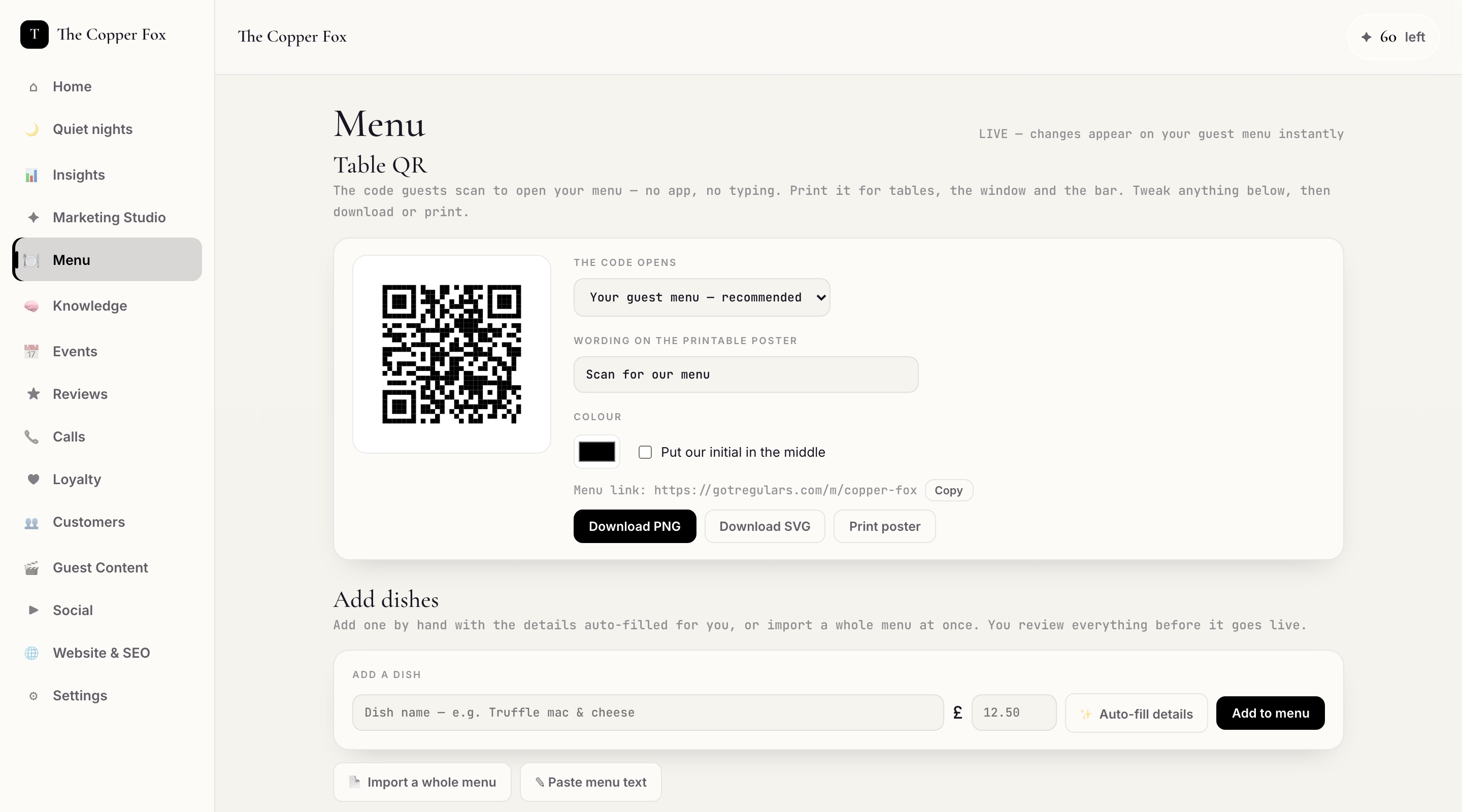
🍽 Menu. Tap any dish to change a price, reword it, hide it or tick its allergens. It updates on every phone in the room instantly. Demo venue
✦ Marketing Studio. Every Monday, a week of posts drafted from your real dishes and events. Approve the lot in one tap, or edit any of them. Demo venue
Do this once, in your first week: read your menu like a guest
Ten minutes, once, and every automatic answer is correct forever after. Three things only: are the prices right? · is anything missing, or gone? · are the allergens ticked? Everything your receptionist and your menu assistant ever say about food comes from this screen — and the system never guesses about an allergy, it only ever repeats what you have ticked.
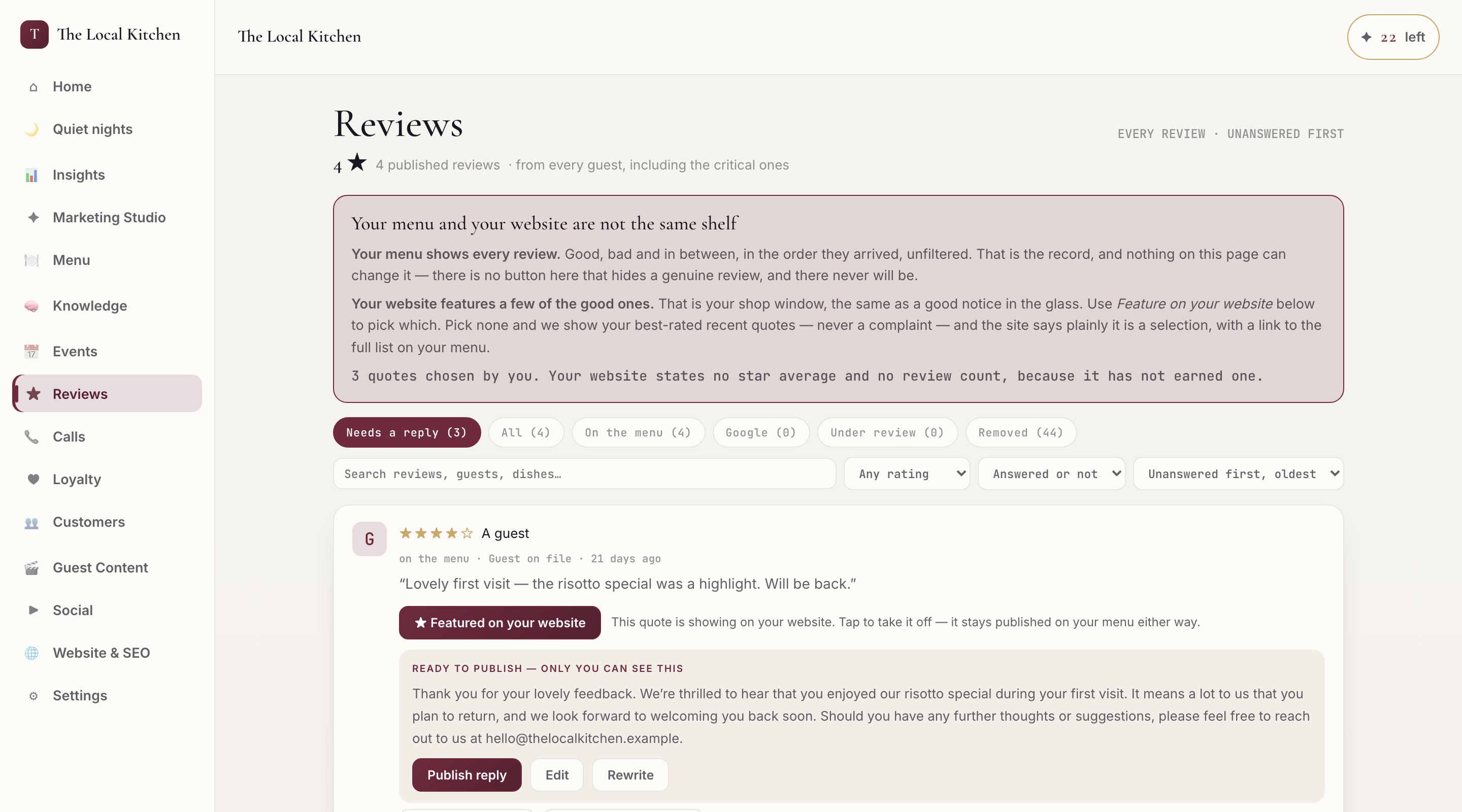
★ Reviews
Unanswered first, always, each with a reply already drafted. Weekly: publish or edit the drafts. Two minutes.
📞 Calls
Every call, with a transcript and a recording. Weekly: skim the ones marked as needing you. A summary is emailed each Monday anyway.
📊 Insights
The longer view — what is growing, what is not. Monthly: read it alongside the report we email you.
Left: Reviews. A reply is written for every review, including the critical ones — especially the critical ones. Right: Calls. Caller, length, what they asked for, how it went. Our demonstration venues
Your console16
GotRegulars · Your first five daysYour console
Step seven, continued
The other nine, in one page.
Open each of these once so you know it exists. Most of them you will visit occasionally, or never — they run without you.
| View | What it is for | When to open it |
|---|
| 👥 Customers | Every guest who has ordered, booked or joined rewards — name, visits, spend, what they usually eat. Yours, exportable. | When you want to ring your best twenty regulars about something. |
| ♥ Loyalty | Your rewards scheme: how points are earned, what they buy, who is close to a reward. | Once at the start. Then it runs itself. |
| 📅 Events | Quiz nights, supper clubs, set menus — with tickets and booking if you want them. Your receptionist mentions them to callers. | Whenever you have something on. |
| 🧠 Knowledge | The answers your receptionist gives to anything that is not on the menu: parking, dogs, high chairs, last orders, the loud table by the window. | Week one, then whenever you are asked something new twice. |
| 🌐 Website & SEO | Your venue website, your visibility score, and where your Google listing is linked once you have added us as Manager. | After step three, to check Google has linked. Then monthly. |
| ▶ Social & 🎬 Guest Content | Your posted clips, and photos or videos guests have shared that you can reuse (with their permission). | Occasionally, for something to post. |
| ⚙ Settings | Your seven answers, your connections, where we email you, your average spend per head. | When something changes — a new number, a new email. |
Your weekly ten minutes, in order
1. Home — read the top three cards. 2. Quiet nights — if a night is red, set an offer (three taps). 3. Marketing Studio — approve the week (one tap, or edit first). 4. Reviews — publish the drafted replies. 5. Menu — anything sold out or repriced.
That is the entire job. Everything else on these three pages happens whether you open the console or not.
Your console17
GotRegulars · Your first five daysThe QR menu
Step eight · the QR menu You · when the cards arrive
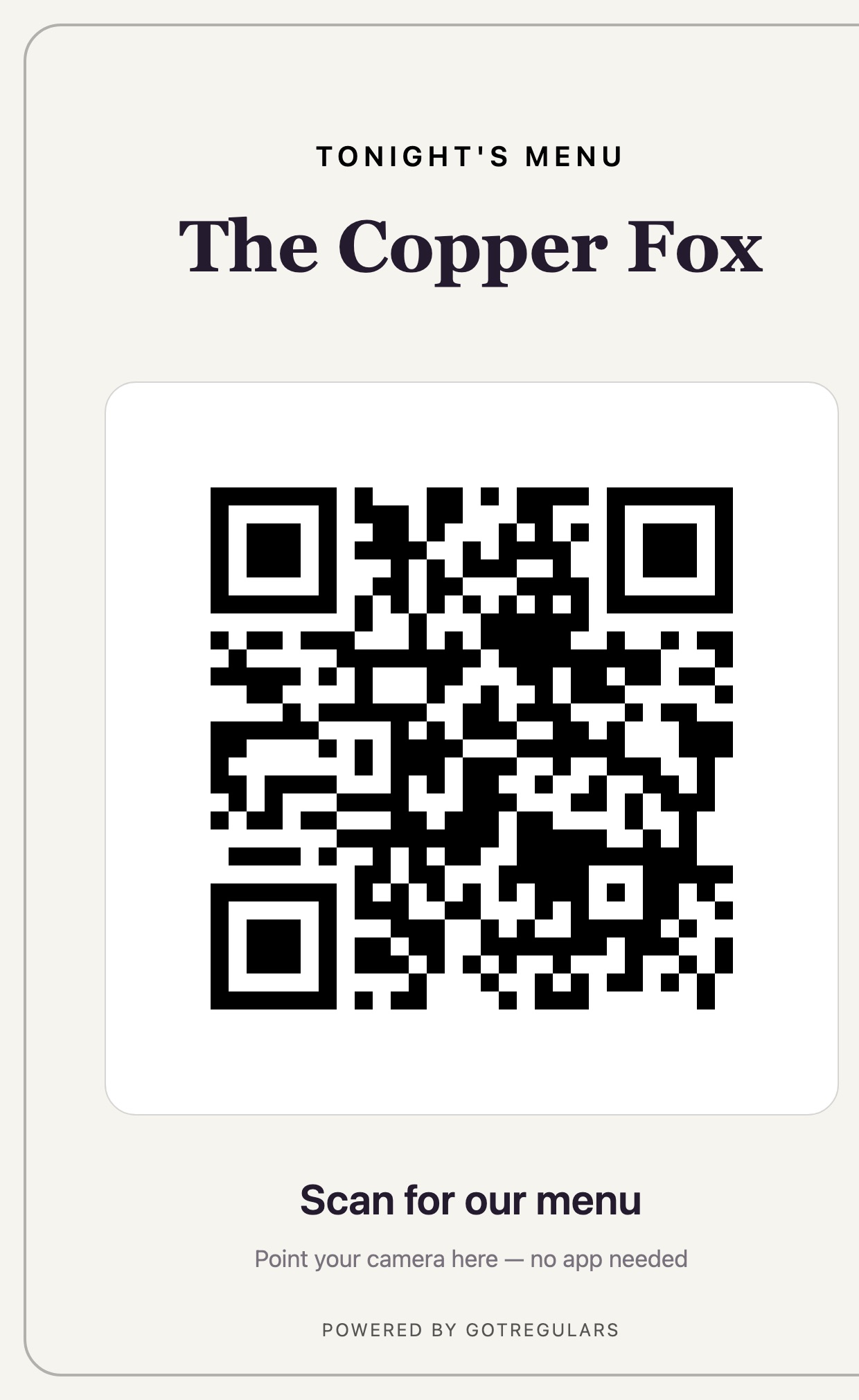
The QR is the front door to everything you are paying for.
One scan opens your menu, your ordering, your rewards and your booking. If the cards are not on the tables, most of what we built is invisible to the room.
Your table card. Printed in your own colours, with your name on it. We post you a set; you can also print more yourself from the console at any time. Demo venue
Where to put them
1
One on every table, standing up, near the middle. Not under the salt, not flat where a plate covers it.
2
One by the door — people waiting for a table read the menu, and a good number book while standing there.
3
One at the bar, and one wherever people queue.
4
One on the outside of the window or the A-board, if you have one. It works from the pavement, at eleven at night, when you are closed.
Printing more yourself
Console → Menu → Print QR cards. It gives you a print-ready sheet. Any printer, plain card, no special paper. Test one scan with your own phone before you print fifty.
The one sentence your team says when a guest looks unsure
“Scan that and you can see photos of everything, order from your seat, and it starts your rewards card automatically.”
Sixty seconds with the team, before your first service
“Three things. One: orders from phones appear on this screen and beep — tap Start when you begin one, Done when it goes out. Allergy notes are in capitals, read them. Two: guests may show you a rewards screen with a code — it is real, honour it. Three: if the phone is quiet, that is the receptionist answering it. It books tables by itself; anything unusual, it texts the manager.”
That is the whole of the staff training — nothing else to learn, nothing to log into.
The QR menu18
GotRegulars · Your first five daysThe kitchen
Step eight, continued · the kitchen screen You · 2 minutes
Any old tablet becomes your order board.
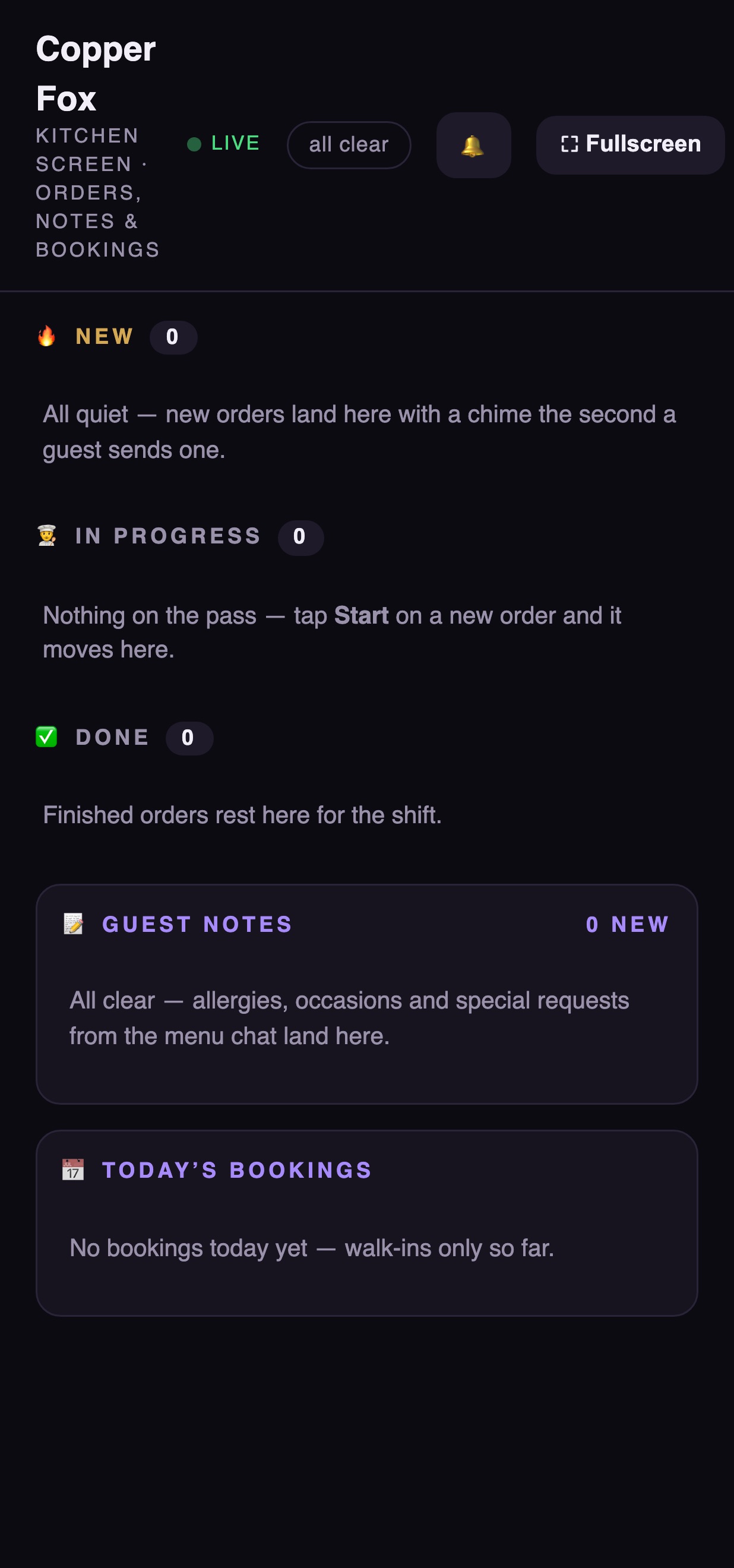
It shows every order the moment it is sent, chimes until somebody taps it, and prints allergy notes in CAPITALS. Set it up once and it stays awake through service.
The first thing it asks for is your venue key — we give it to you on the setup call. You type it once, on that tablet, ever. Demo venue
On an iPad
1
Open Safari and go to your kitchen screen link (it is in your welcome message, and we can text it again).
2
Type in the venue key. Once, forever.
3
Tap the Share button — the square with the arrow — then Add to Home Screen, then Add.
4
Open it from the new home-screen icon. It now fills the screen, stays awake, and beeps on every new order until someone taps Start.
On Android it is identical, but the browser is Chrome and the menu option is called Add to Home screen.
Why the home-screen version matters: an ordinary web page lets the tablet fall asleep mid-service. The home-screen one does not.
Optional: a kitchen ticket printer
If your kitchen lives on paper, our orders can print exactly like your till's tickets, right beside them. You need a Star TSP143IV or Star mC-Print3 (about £200, bought by you — if you already own a Star printer, tell us the model and we will check it). Plug it into power and your router, and on a five-minute video call we give you one web address to paste into its settings. After that it prints by itself forever, and if it ever jams no ticket is lost — it prints the backlog when it is fixed.
No printer is needed to go live. The kitchen screen and the email copies carry every order from day one.
The kitchen19
GotRegulars · Your first five daysAutomatic vs you
Step nine · the honest division of labour
What runs on its own, and what genuinely needs you.
The left-hand column happens whether you open anything or not. The right-hand column is the whole of your job — about ten minutes a week once you are live.
Runs automatically · no action from you
Every call answered, at any hour, and booked
Booking confirmations texted to guests
Order tickets to the kitchen screen, printer and email
Allergy notes carried to the pass in capitals
Rewards points earned and tracked
Review invitations sent after a visit (guests who came through your menu or phone host and agreed to be asked)
Review replies drafted, ready for you
Next week's posts drafted from your real menu
Approved posts published (on connected channels)
Quiet nights detected against your own baseline (from about week five)
Bookings imported from your existing diary
Till sales imported (on connected tills)
Your website kept live and indexed
Your visibility re-scored every month
The weekly call summary, emailed Mondays
The monthly value report, emailed on the 1st
Needs you · about ten minutes a week
Once, in week one
Add us on Google as Manager — 2 min
Connect Instagram and Facebook — 4 min
Read your menu through for prices and allergens — 10 min
Kitchen screen on a tablet — 2 min
QR cards out, sixty seconds with the team — 10 min
Every week
Approve the week's posts — 1 tap
Publish the drafted review replies — 2 min
Set an offer if a night is flagged red — 3 taps
Confirm booking requests — 1 tap each, if you chose "You confirm"
Update the menu for anything sold out or repriced
Occasionally
Add an event when you have one on
Add an answer to Knowledge when you are asked something new twice
And what will never happen without you
Nothing publishes to your social accounts unapproved. No price changes itself. No review is answered in your name until you have published the reply. No offer goes out that you did not set. No booking is confirmed on your behalf if you chose "You confirm". The automation runs the work; it does not make your decisions.
Automatic vs you20
GotRegulars · Your first five daysGoing live
Day five · the final tick list
Seven ticks, and you are live.
The last two we do together, on a call. When they are done, guests scan, order, book, join your rewards, and every bit of it reports back to you.
✓
Setup call done — the seven answers in (pages 4–5)
✓
We are a Manager on your Google Business Profile — and your console shows the listing linked (pages 6–9)
✓
Instagram and Facebook connected — or a deliberate decision not to, which is fine (pages 10–11)
✓
Menu read through — prices right, allergens ticked (page 16)
✓
Kitchen screen live on a tablet at the pass — and the QR cards are out on the tables (pages 18–19)
✓
Test call made to your own number — you hear your receptionist answer, and you like what it says
✓
Test order sent from your own phone — you watch it land on the kitchen screen and chime
Week one, after go-live
We watch your first week closely and ring you at the end of it — what came in, what was answered, what the room made of the QR, and anything to change. You do not have to prepare for that call.
Month one
On the first of the month, one plain-English email: calls answered, tables booked, orders taken, regulars brought back, reviews captured — and what it was worth. Two kinds of number, always labelled: tracked (real money) and estimated (covers at your spend per head). We never blur the two.
Stuck on anything, ever
Reply to any text or email we have ever sent you. A person reads all of them.
There are no silly questions here. The entire point of this is that you never have to be technical about any of it.
Rhys Stanley
Founder & CEO, GotRegulars
hello@gotregulars.com
+44 7383 043247
gotregulars.com/first-five-days
GotRegulars Ltd · registered in England & Wales no. 17344661 · 66 Paul Street, London EC2A 4NA21